

ON THIS PAGE
Introduction
Logs are one of the most important yet overlooked parts of running a Magento site. Logs capture key information about what is taking place inside of your application: system events, debugging messages, errors and warnings. But unchecked logs can quickly get out of control, occupying space on your server and making debugging much more difficult.
Log rotation is the resolution. Let us answer all of the big questions —
- What is Magento log rotation?
- Why is it important?
- Who do you need to implement it?
- When and where do you need to configure it?
- How do you do it correctly?
By the end, you will be aware of how to effectively maintain clean and effective log management in Magento.
What does Log Rotation mean in Magento?

Log rotation refers to the way we manage log files by archiving, truncating, or deleting them after a certain age or size. Log rotation allows us to keep large files like system.log or exception.log neat, fresh, and clean, instead of letting them grow.
In Magento, log rotation is handled in two ways:
- Log clean-up in the database – Magento will automatically delete old log records in database tables such as customer_visitor and report_event.
- File log rotation – Note that Magento does not automatically rotate files in the directory var/log/. Instead, the administrator will need to rely on server-side utilities such as Linux logrotate to manage those files.
Having these two elements allows us to keep logs, whether database-based or file-based, under control.
Why is Log Rotation Important for Magento Stores?
Without log rotation, a Magento store can soon become inundated with various issues:
- Server performance issues – Large log files are detrimental to file read operations. Even editing a log file that is several gigabytes with a text editor can start to hang the server.
- Disk space usage – Logging continues to grow, and as we drive more traffic to the store, the amount of log data expands. A store with a good amount of traffic can generate gigabytes of exception and debug logs over a matter of weeks.
- Difficulty with debugging – Large files are more difficult to search and scan. Finding one error in a 5GB file can cost precious developer time.
- Stability risks – In the worst-case scenario, logs can consume disk space, leading to a site crash from running out of storage space.
By turning on log rotation, you prevent these risks and keep your Magento healthier.
Who Should Configure Log Rotation?
Log rotation is a shared effort between the Magento administrators and the system administrators:
- Magento Administrators:
- Configure the log cleaning from the Admin panel of Magento.
- Configure the expiration time for database logs.
- Verify that the cron jobs are operating correctly.
- System Administrators / DevOps Engineers:
- Configure file-based log rotation using logrotate or other tools available on the server.
- Monitor disk space and server health.
- Leverage cron jobs to automate log management from the system level.
In a small company, a single developer may do both. In a large enterprise, it is often split between Magento practitioners and infrastructure teams.
When Should You Enable Log Rotation?
Log rotation should be enabled as soon as your Magento site goes live.
There are a few key scenarios where log rotation is needed:
- After you see abnormally large log files (system.log > 500MB or greater).
- When your server is running low on storage.
- When performance of the Magento site is falling off due to intensive logging operations.
- During routine maintenance cycles, purging old logs and reports.
Best practices recommend configuring log rotation before any of the issues above occur, which allows you to prevent these problems before they happen rather than responding to problems that have already occurred.
Where are Magento Logs Stored
/var/www/html/magento2/var/log/
The Magento Logs are primarily stored in var/log/. The standard logs are:
- system.log – System messages.
- exception.log – PHP exceptions and errors.
- debug.log – Developers debug output if debug mode or logging is on.
- custom_module.log – Log files generated by whatever custom modules / extensions.
The Crash Reports are stored in var/report/.
There are also log tables in the database such as:
- customer_visitor
- report_event
- customer_log
To keep the store healthy, we have to manage both the file logs and the DB logs.
How to Set Up Magento Log Rotation
We will walk through the steps to set this up in three logical phases, Verification, Configuration and Automation.
Phase 1: Verification and Assessment
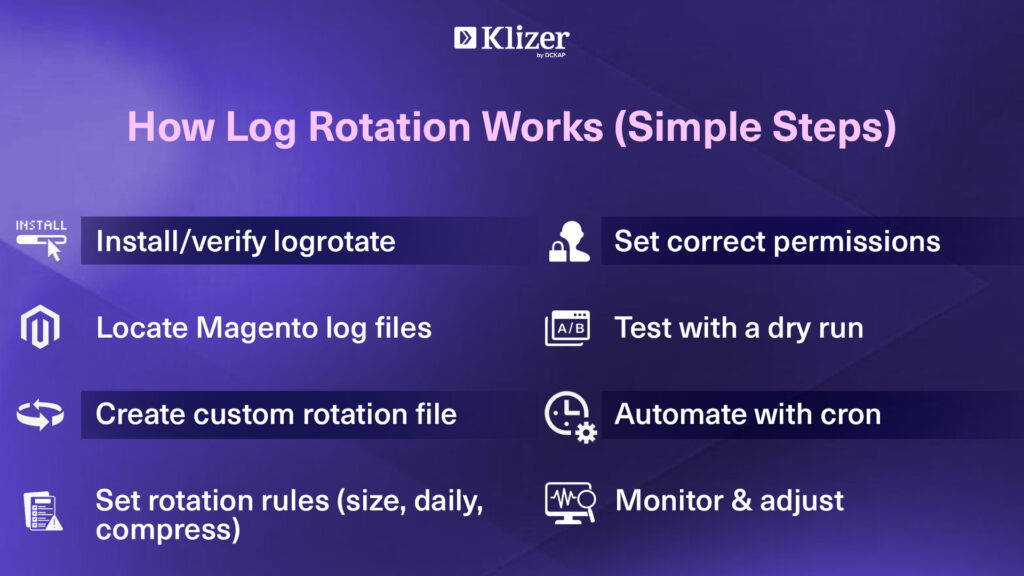
Step 1: Check Logrotate Installation
The logrotate utility is the native Linux utility for managing log files, it allows to automatically compress, delete, or mail logs based on the configuration you define.
To ensure it’s installed on your server:
sudo service logrotate status
If you run Ubuntu/Debian and it isn’t printed, install it:
sudo apt-get install logrotate
If you’re on RHEL/CentOS, it’s usually pre-installed. If necessary, you would use:
sudo yum install logrotate
Prior to going forward, it is crucial to verify the setup – this will be the foundation of your rotation settings.
Step 2: Find Magento Log Files
It’s good to see where Magento logs are being written here. For example:
cd /var/www/html/magento2/var/log/
To make sure:
ls -lh
Take note of where the bigger logs (system.log, exception.log, debug.log) are located as well as any of your own modules you create. This will make it easier when setting up rules to rotate them later.
Step 3: Check the Growth of the Logs
Knowing how quickly logs grow will make it much easier to define an appropriate interval to rotate logs. You may have to check the file size:
ls -lh /path/to/magento/var/log/
To monitor the growth:
du -h /path/to/magento/var/log/
Run those commands over a few days, to see if patterns emerge. For example, if your logs grow by a 100MB day, the appropriate strategy will be to rotate daily or by threshold of size as in 50MB.
Phase 2: Setting up Logrotate for Magento
Step 4: Create Stand alone Configuration file
It’s advised to create a standalone file for Magento logs, as opposed to changing the global configuration for logrotate.
sudo nano /etc/logrotate.d/magento2
Add the following (And change paths accordingly):
/var/www/html/magento2/var/log/*.log {
daily
size 50M
rotate 7
compress
delaycompress
missingok
notifempty
create 664 www-data www-data
copytruncate
postrotate
/bin/kill -USR1 `cat /var/run/nginx.pid` 2>/dev/null || true
endscript
}
Let’s break this down:
- Daily: Rotates logs once a day
- Size 50M: Rotates if a file is larger than 50MB
- Rotate 7: Retains seven rotated logs
- Compress: Old logs are compressed for space savings
- delaycompress: Delayed compression one cycle after rotation
- missingok: Handles missing log files gracefully
- notifempty: Does not rotate empty logs
- Create 664 www-data www-data: Creates new logs with proper permissions
- copytruncate: Guarantees the active log keeps logging without service downtime
- postrotate: Executes a command upon rotation — in this case, it reloads Nginx gracefully
Step 5: Change File Permissions
Different servers have different web user accounts.
- Apache generally uses www-data.
- Nginx typically uses nginx.
Verify current ownership:
Ls -la /path/to/magento/var/log/
If your web server is using nginx, then you’ll want to change the create line in your configuration to:
Create 664 nginx nginx
This way, new log files can be written to after rotation without getting permission problems.
Step 6: Verify Configuration is Valid in Debug
As always, be sure to verify your configuration is valid before enabling it:
sudo logrotate -d /etc/logrotate.d/magento2
This will perform a dry run — it will not actually rotate the files, but show you what would have happened.
Carefully review the output to make sure:
- The paths are correct
- The permissions are correct
- No syntax errors existed
Only continue after making sure everything appears to be correct.
Phase 3: Automating and Monitoring
Step 7: Schedule the Rotation with Cron
Most Linux systems have a default cron job that runs logrotate on a daily schedule:
/etc/cron.daily/logrotate
To customize the schedule (i.e. run it at 2:30 am every day) use your own cron entry:
sudo crontab -e
Then, add this line:
30 2 * * * /usr/sbin/logrotate /etc/logrotate.d/magento2
Make sure that the cron user has enough permissions to rotate Magento (in most cases, root).
Step 8: Monitor and Troubleshoot Log Rotation
Automating a task does not substitute for monitoring. Even if you’ve automated a task, you will need to monitor for errors or problems.
To see what logrotate has done, you can check its activity log:
cat /var/log/logrotate.log
You may also want to create a custom script that checks for rotated logs or raises a warning if the log space usage exceeds some threshold:
For example:
find /var/www/html/magento2/var/log -type f -size +100M
In fact, putting those checks into a monitoring system (Nagios, Zabbix, Prometheus, etc.) means any preemptive maintenance of your logs will happen before you discover that you have run out of disk space.
Step 9: Proper Documentation
It is important to document any configuration changes you have made to your server regarding:
- The location of your Magento log directory
- How often you will rotate the files and how big they will become before you rotate files
- How many backup files you will keep
- When your cron job runs to check for log rotation
- Ownership and permission management.
Good documentation ensures that future administrators understand and maintain the system consistently. It also streamlines audits and troubleshooting.
How will log rotation improve my Magento Store performance?
Log rotation provides a number of direct performance benefits:

Read Next: Magento 2 Migration: Types, Best Practices & Official Notes
- Faster debugging – Developers and code remediators will be able to sift through smaller log files, instead of struggling through massive files.
- Better server performance – Rotating the logs reduces the chance of filling the disk and incurring an unexpected service interruption or downtime because the server can no longer write to the disk.
- Better resource optimization – Smaller logs consume less memory and CPU time to analyze.
- Easier backups – Compressed and rotated log files take up less space on disk and will, therefore, utilize less time to copy, and move less data during backup.
These enhancements work together to keep an online store stable and responsive.
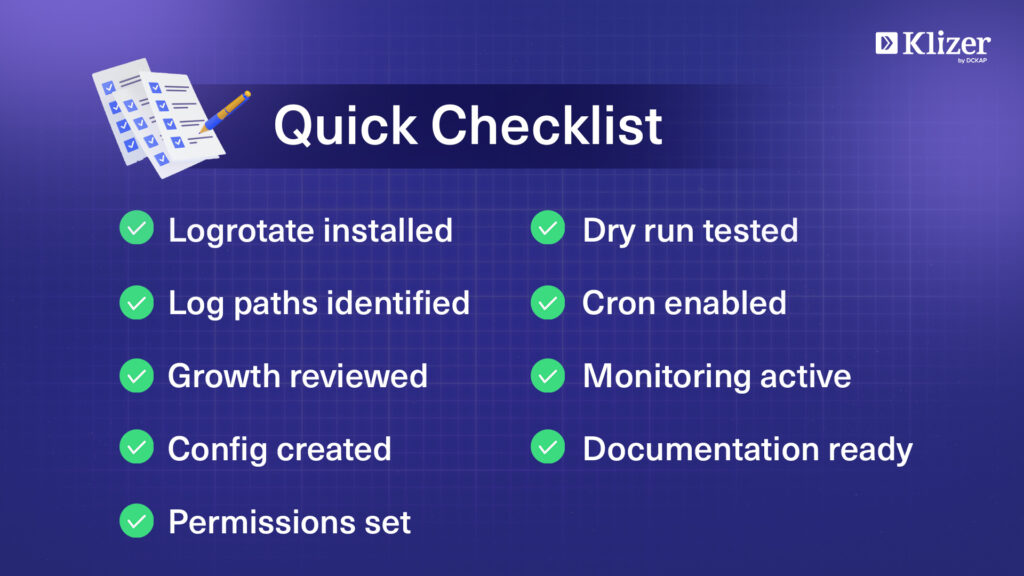
Implementation Checklist
- Logrotate is installed and confirmed
- Magento log locations identified
- Patterns of file growth reviewed
- Custom logrotate configuration created
- Permissions set and ownership verified
- Dry-run test performed
- Cron automation enabled
- Monitoring began
- Documentation complete
Common Mistakes to Avoid with Magento Log Rotation
- Relying on only Magento’s internal cleaning – It is important to remember it cleans database logs not file logs
- Setting retention speeds that are too short – Removing logs too rapidly can eliminate important debugging information
- Forgetting to compress – Storing un-compressed old logs takes up disk space
- Not monitoring for log grow – Some modules produce unnecessary logs, which may be alerts that require attention from a developer, even when rotated.
Case Study: A Real Life Example
An intermediate Magento site found that their server performance had dropped significantly. Upon looking at the logs, exception.log was over 8 GB in size just in two months. You were not able to open the log file in a text editor nor could the server run with its disk space at 90%.
The fix included:
- Enabling the log cleaning through Magento Admin with retention of 60 days
- Creating a logrotate job to rotate logs weekly and compressed old copies
- Enabled monitoring for log size grows through server alerting
After these activities were taken the largest log file was under 50 MB and the server stabilized.
Summary
Log rotation on Magento is not a maintenance task – it is a requirement for performance, stability, and operational efficiency concerns.
- What: Log rotation limits the growth of database logs and file-based logs.
- Why: To avoid performance delays, storage and space issues, and issues around debugging.
- Who: Database log cleaning is the responsibility of the Magento administrators while system administrators set up the log rotation through server level tools.
- When: It should be turned on from day 1 with production deployment.
- Where: Logs are in /var/log/ and in database tables.
- How: Use Magento’s log cleaning for the database logs and use logrotate to rotate file based logs.
By utilizing Magento’s built-in functionality as well as system-level tools you can keep log files useful, manageable, and never a burden to your store’s infrastructure.
If you want any help, partner with Enterprise ecommerce development Solutions like Klizer. Their Magento experts provide the best Magento development solutions that help you grow your business.