

Shopify just rolled out a major change to how inventory and shipping zones interact. The “Sell from all locations to all shipping zones” option is being called off and replaced by “Sell only within configured shipping zones.”
This shift will fundamentally alter how merchants manage stock visibility, fulfillment routing, and the checkout experience.
In this blog, we are sharing what’s changing and why Shopify is making the move. Check out how it affects your store infrastructure, and what you should do now to prepare for this change.
ON THIS PAGE
What is this Shopify Update About?
Historically, Shopify’s “Sell from all locations to all shipping zones” setting allowed products to be purchasable from any fulfillment location across all shipping zones, regardless of whether that location was configured to ship to that customer’s region. Shopify now considers that approach to be too sloppy. This is because it often led to overselling, order cancellations, and manual corrections.
Between July 7 and September 30, 2025, Shopify systematically migrated all stores to the “Sell only within configured shipping zones” mode. After the migration, if a customer’s shipping zone is not served by any fulfillment location that has stock, the item will appear unavailable or cannot be purchased.
Why was this Change Important
- Prevent overselling and negative inventory: The old model often allowed stores to sell inventory that was only present in an un-serving location, triggering downstream issues.
- Improve checkout reliability: Customers will not have to face shipping or stock issues after or during checkout.
- Better stock visibility and accuracy: Inventory availability becomes deterministic and tied to shipping zones.
- Reduced manual intervention: Fewer order cancellations and manual fixes due to misaligned stock/fulfillment.
What are the Features of this Update and How Does it Impact Businesses
Fulfillable Inventory Feature
Shopify’s fulfillable inventory setting controls which inventory is shown as available, based on locations and shipping zones.
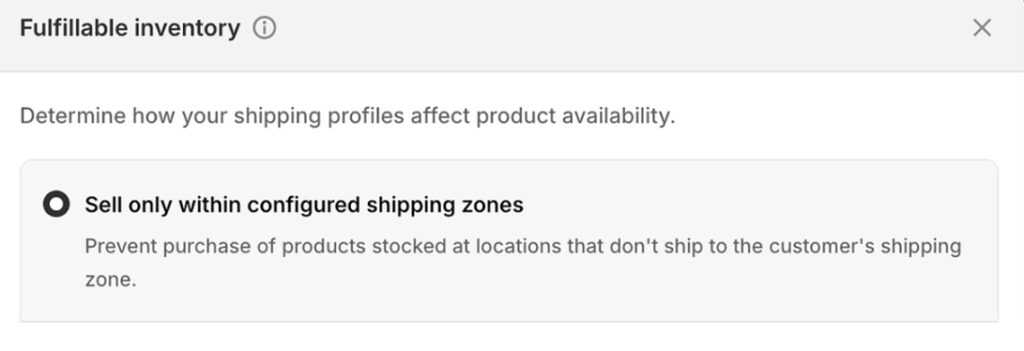
Under the old model, businesses had:
- Sell from all locations to all shipping zones — every product could be purchased from any location (regardless of zone mapping).
- Sell only within configured shipping zones — a product will only be purchasable if it is stocked in a location that serves the customer’s shipping zone.
This is what you need to do during the migration period:
- Checkout enforcement: Shopify will block checkout for products not stocked in a location that ships to that zone. Even if inventory exists elsewhere, it’s considered unavailable for that customer.
- Storefront enforcement (later rollout): Product pages may display variants or items as “out of stock” if no serving location can deliver to that customer’s zone.
Impact on Locations and Shipping Zones
- Every fulfillment location must have shipping rates defined for the zones it intends to serve, or else its inventory won’t count for those zones.
- If a location has stock but no eligible shipping rates for a customer’s zone, that location becomes invisible for that customer.
- Merchants who use “Continue selling when out of stock” can allow overselling, but this only works if the variant setting is turned on.
Customer Experience Changes
- At checkout: A product variant is blocked if no serving location has stock.
- On product & collection pages: Some variants or entire products may show as “unavailable” or “out of stock” in a given region (once storefront enforcement is live).
- Messaging issues or theme behavior: Merchants have already reported “Sold Out” artifacts for themes when a location mapping is missing or misconfigured.
You may have received an update from Shopify if your store hasn’t been migrated yet.
Shopify development teams should also be alert because apps dealing with subscriptions or fulfillment might face new errors if variants cannot be fulfilled in a given zone.
Action Plan to Prepare Your Shopify Store
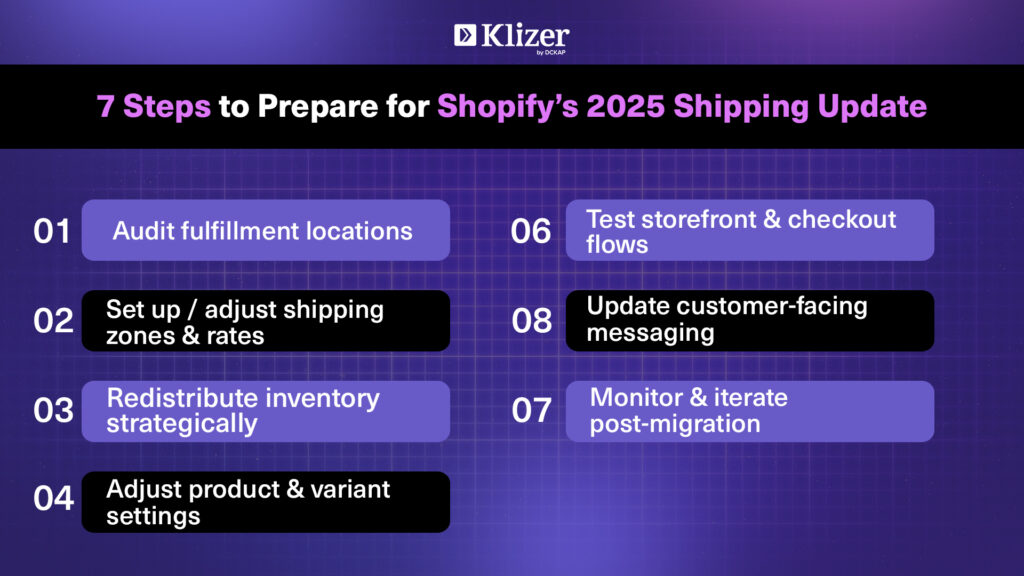
If you’re worried about downtime, lost sales, or customer confusion, follow this preparation roadmap:
1. Audit & Catalog Your Fulfillment Locations
- List all your warehouses, drop-shipping partners, etc.
- For each, check which shipping zones they currently serve (via shipping profiles).
- Flag locations that hold inventory but have no shipping rate mapping.
2. Set Up / Adjust Shipping Zones & Rates
- Go to Settings → Shipping and delivery → Shipping profiles and edit zones.
- Add or update zones so that each location you want to serve has coverage in its intended regions.
- Optionally, define a backup shipping region so that no market is left unserved.
3. Redistribute Inventory Strategically
- Move stock into locations that are zone-enabled in high-demand regions.
- If a location cannot practically be mapped to many zones, consider deactivating it or using it for limited markets only.
4. Adjust Product / Variant Settings
- Turn on “Continue selling when out of stock” for products you’re okay with overselling.
- Identify key SKUs or variants that must stay visible across zones, and ensure supporting location coverage.
5. Test Extensively
- Use addresses from various zones to simulate purchases.
- Switch markets (if you use Shopify Markets) to preview storefront visibility of variants.
- Monitor for “Shipping not available” or “Sold out” errors in the UI.
6. Update Customer-Facing Messaging
- Add notes or FAQ disclaimers: e.g., “Availability in your region depends on shipping zones.”
- On product pages, perhaps show a “This item is not deliverable to your location” banner.
- Review your Shipping Policy / Terms & Conditions to incorporate the zone-based constraints.
7. Monitor & Iterate Post-Migration
- Track KPIs: cancellations, checkout failures, cart abandonment by zone.
- Adjust zone mappings, shipping rates, and inventory allocations as needed.
- Audit new locations when added to ensure they are properly mapped from day one.
Read Next-Shopify Markets: 11 Step Guide [+ Screenshots]
FAQs about the new Shopify Update
Q: What if I don’t want to restrict sales by zone?
A: That option is being removed. You’ll have to map your zones thoughtfully or allow overselling via settings.
Q: Why do I see “Sold Out” on my store even though stock exists?
A: It could be that none of the locations serving your address’s zone have stock. Also, some themes may misinterpret availability logic. Check location → zone mapping.
Q: Will Shopify Markets / cross-border sell be affected?
A: Yes. The fulfillment logic now respects zone-based mapping. Markets that aren’t mapped to shipping zones won’t show inventory.
Q: What about local pickup / in-store fulfillment?
A: Local pickup / in-store should continue, but ensure that pickup locations are active and mapped correctly in your fulfillment settings.
Q: How will apps or custom code be impacted?
A: Apps or scripts assuming universal inventory availability may throw errors or misbehave. Particularly, subscription or recurring order apps must check for availability in mapped locations.
Read Next- Shopify Plus B2B Catalog: Creating And Managing Catalogs
Final Thoughts
The 2025 shipping overhaul is bound to cause friction for merchants who are unprepared. But with careful mapping, inventory planning, and testing, this shift can make your store more reliable, scalable, and customer-friendly.
What You Should Do Right Now:
- Audit your fulfillment locations & zone mappings
- Update shipping profiles and ensure every location is properly assigned to zones
- Test your storefront & checkout flows regionally
- Communicate changes to your customers
- Monitor orders closely post-migration and be ready to react
If you have more questions or need any support for Shopify development, reach out to our Enterprise eCommerce Solutions expert team now!